
昨天有提到了 Burp Suite 跟 ZAP,由於 Kali 有內建這兩樣工具了,所以今天直接來講關於這兩個網頁安全測試工具的 Proxy 設定。
設定 Proxy 主要是要讓這兩個工具可以攔截到瀏覽器的 HTTP/HTTPS 請求。
開啟 Burp Suite :
burpsuite
進去後會到這個畫面,直接點擊右下角的 Next。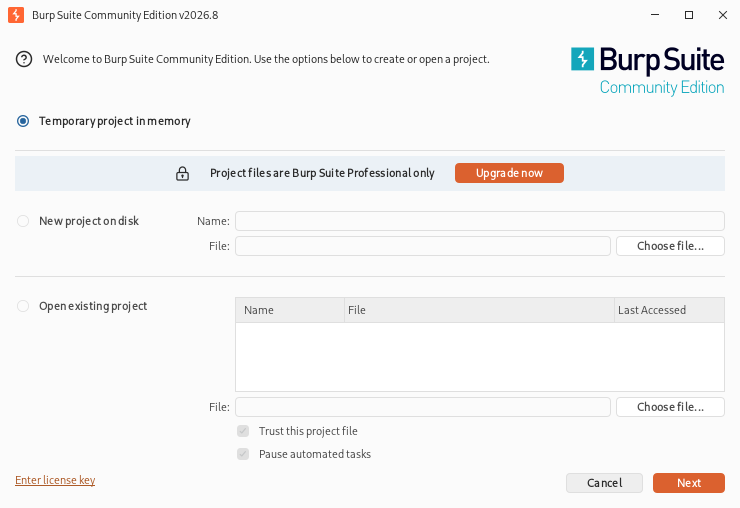 之後就會到這個畫面,直接點右下角的
 Start Burp。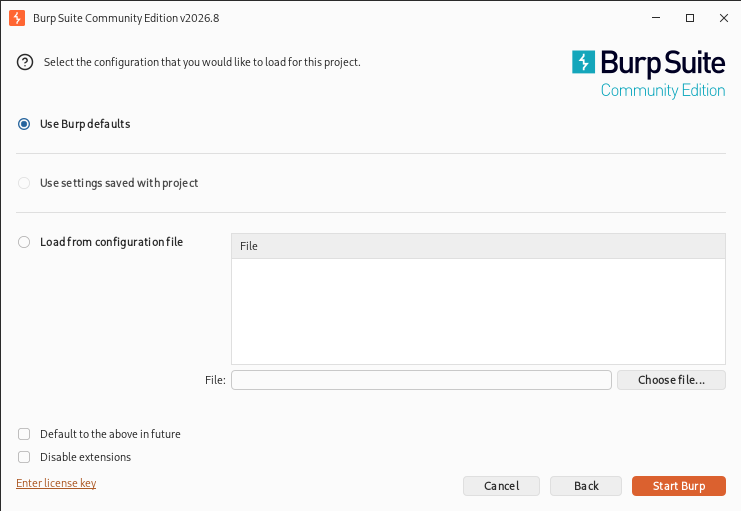 進到 Burp Suite 的主要介面後,先點擊上面選單的
 Proxy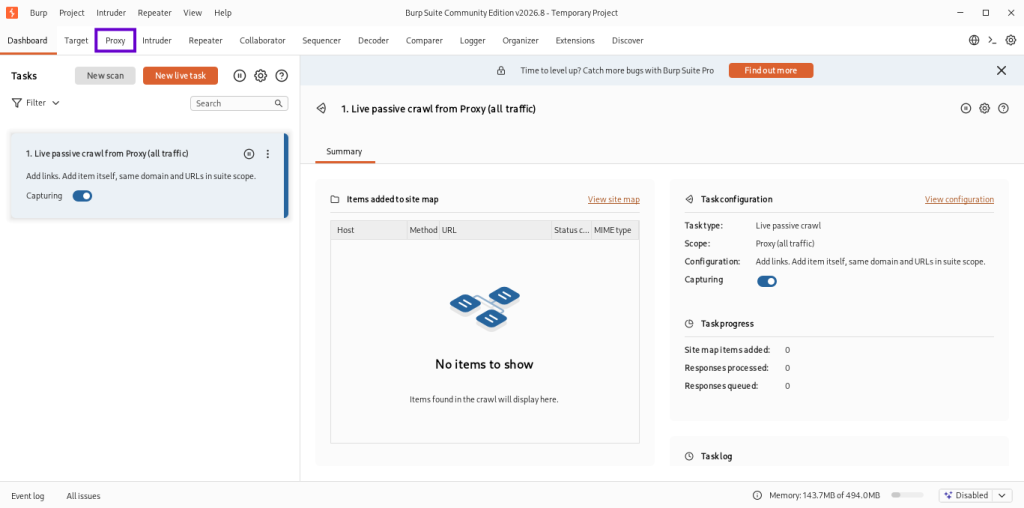 然後點擊
然後點擊 Proxy Setting 。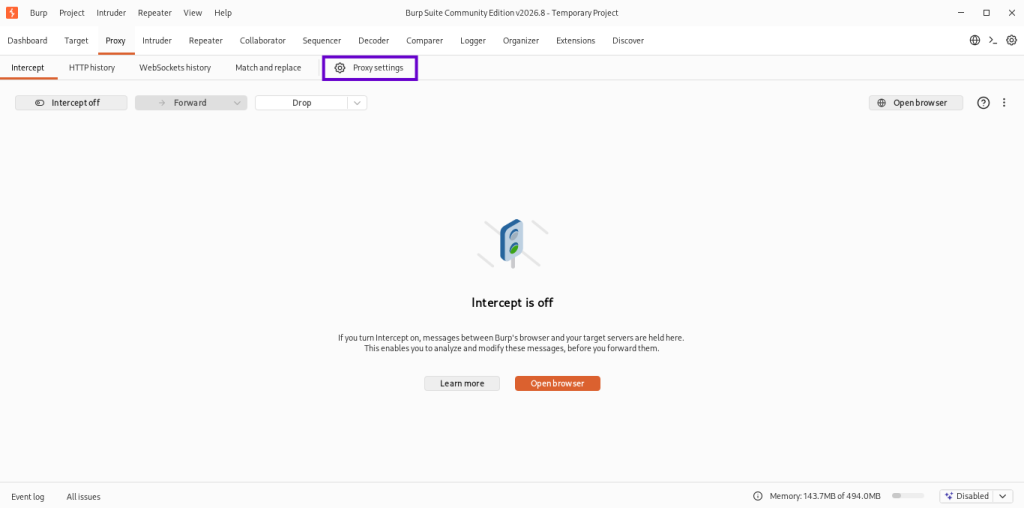 再來是設定 Proxy 監聽瀏覽器的請求,有看到
 127.0.0.1:8080 Running 狀態為打勾就可以了。( 沒有的話可以在 add 裡面新增 )。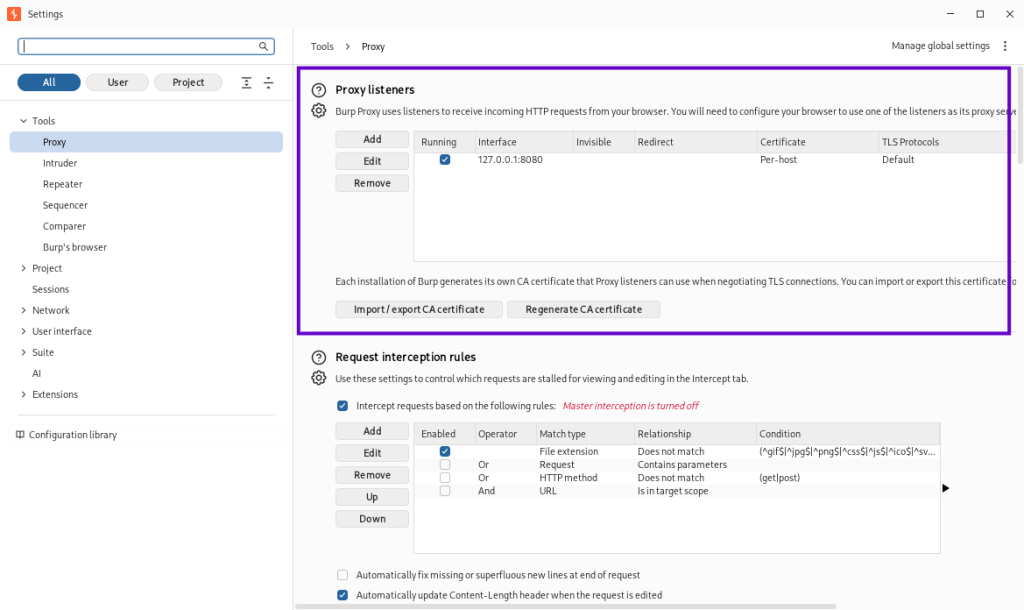 如果沒有的話可以
 add 之後這樣調整選項之後 OK 就會有了。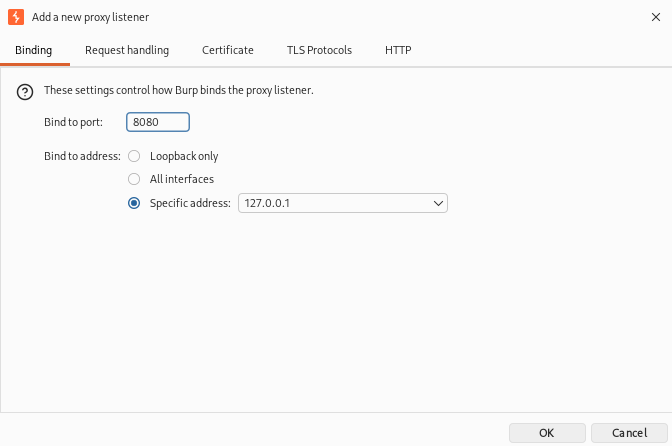
開啟 ZAP :
zaproxy
開啟後會看到這個畫面,可以選擇是否要儲存紀錄。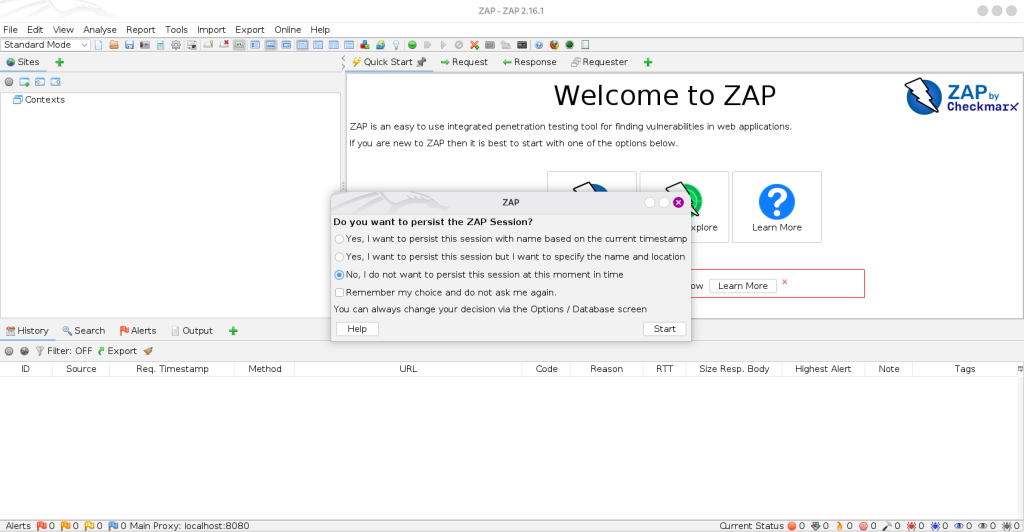 在上面選單中的
 Tools 點開找到最下面的 Options。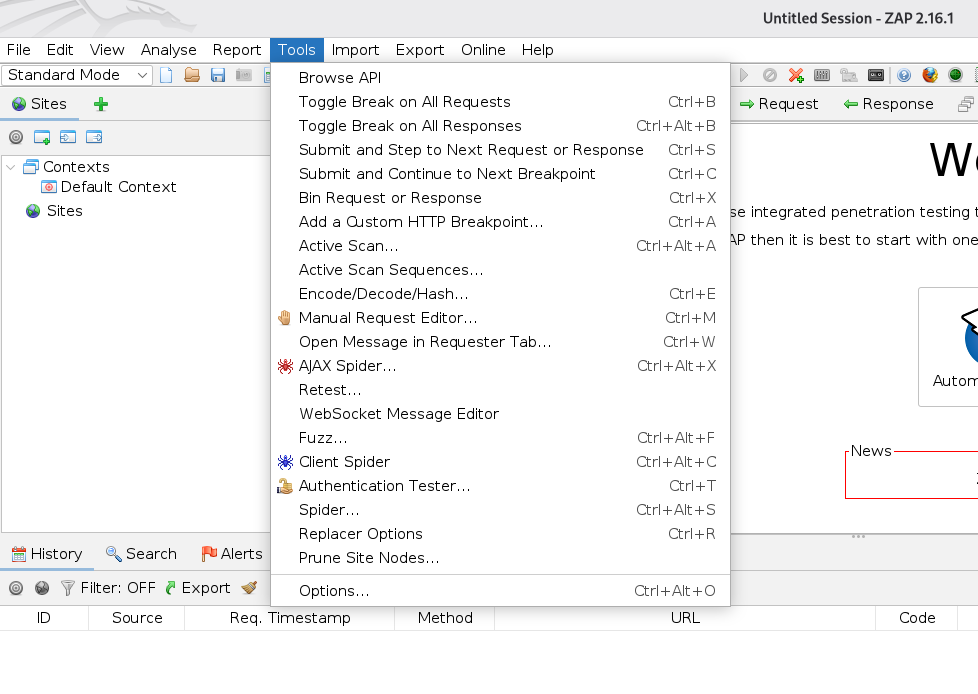 然後在左邊的選單找到
 Network 下的 Local Servers/Proxies。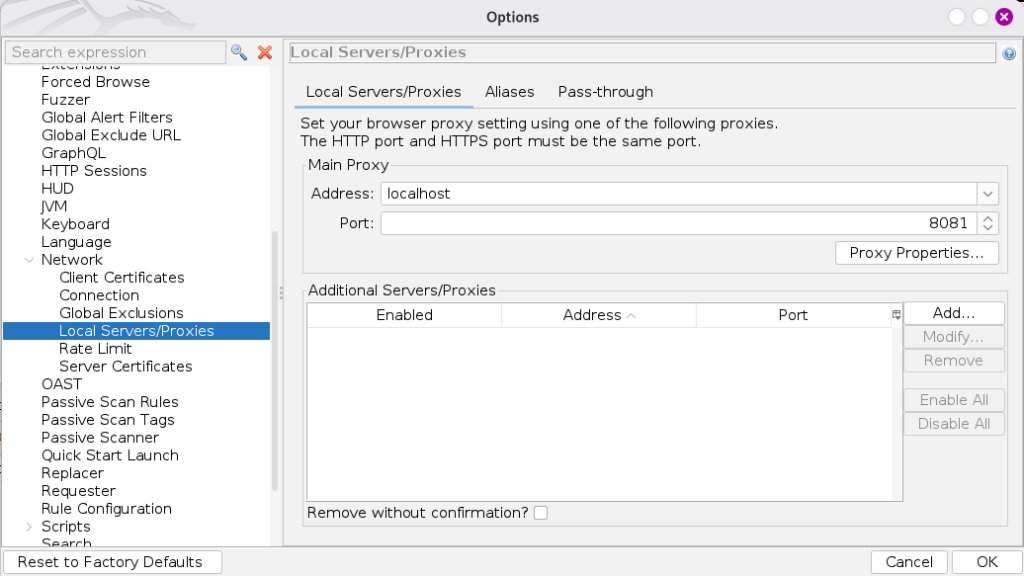 位址設定為 localhost ( 等同於 127.0.0.1 ) Port 可以用 8080 ( 因為我這邊上面 Burp 占掉了 8080 所以這邊我改用 8081 ),點擊
 OK 後就完成了。
今天先只介紹這兩個工具的 Proxy 設定,明天會接著講瀏覽器的 Proxy 設定,才算完整設定完,那今天就先到這邊,明天再見啦。



 iThome鐵人賽
 看影片追技術